The onscreen controls let you manage your recording without leaving the page you’re capturing.
Check that the onscreen controls are turned on in the Desktop app or Chrome extension:
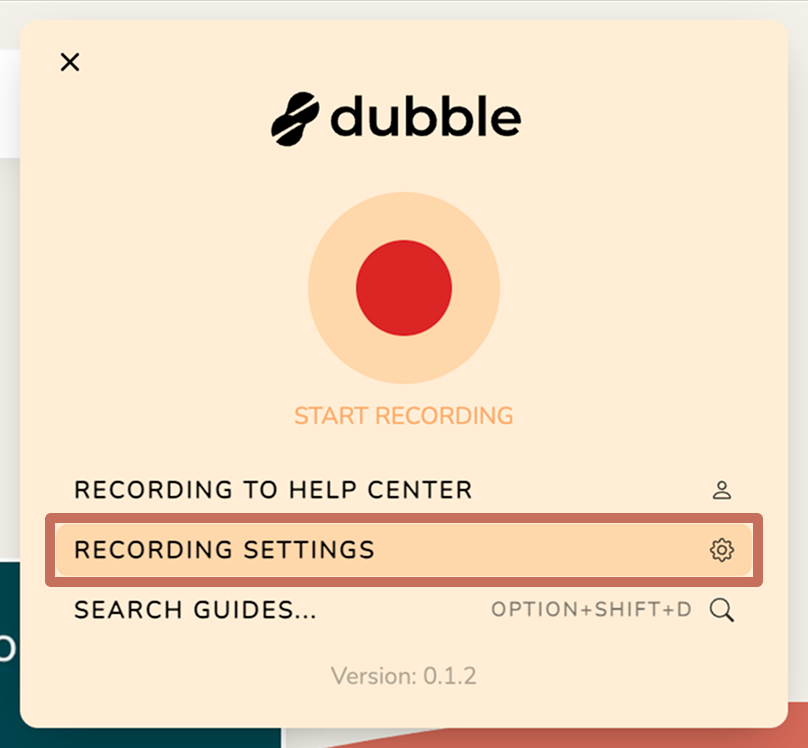
1. Click the Dubble icon and select RECORDING SETTINGS.
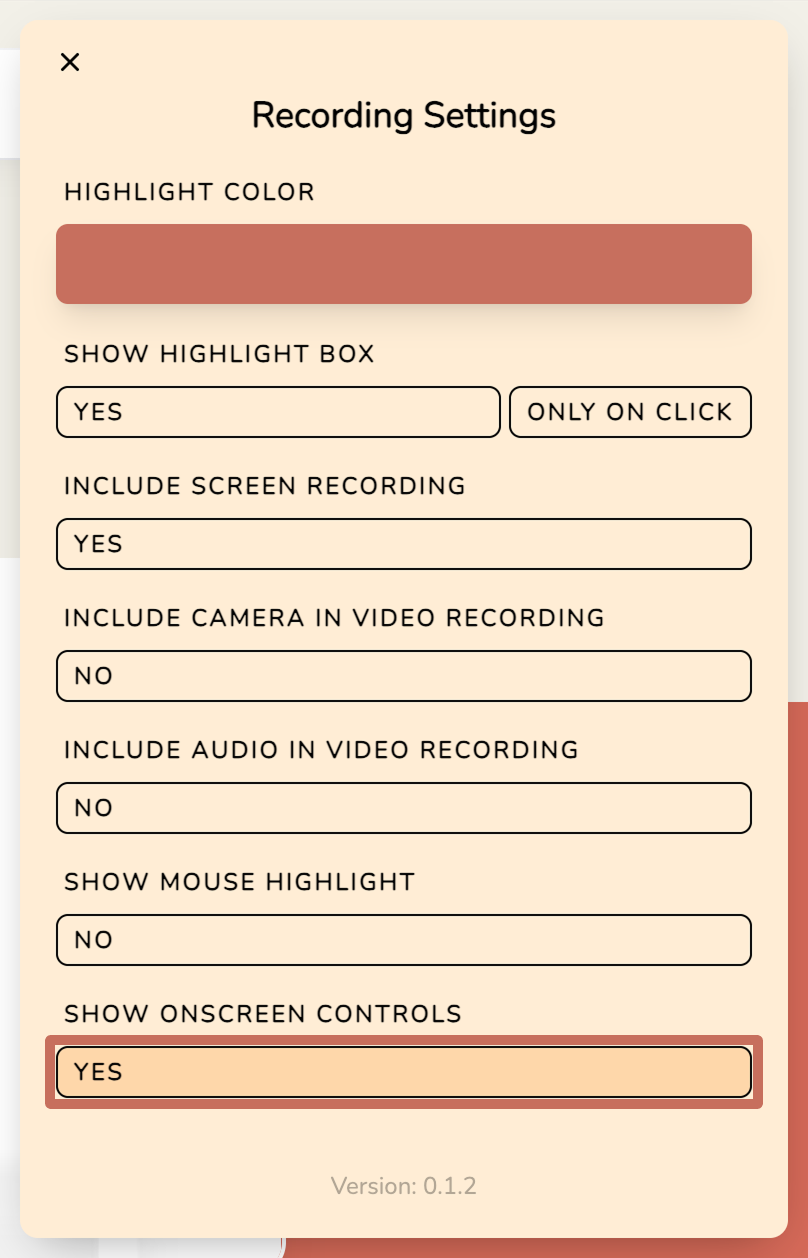
2. Check SHOW ONSCREEN CONTROLS is set to YES.
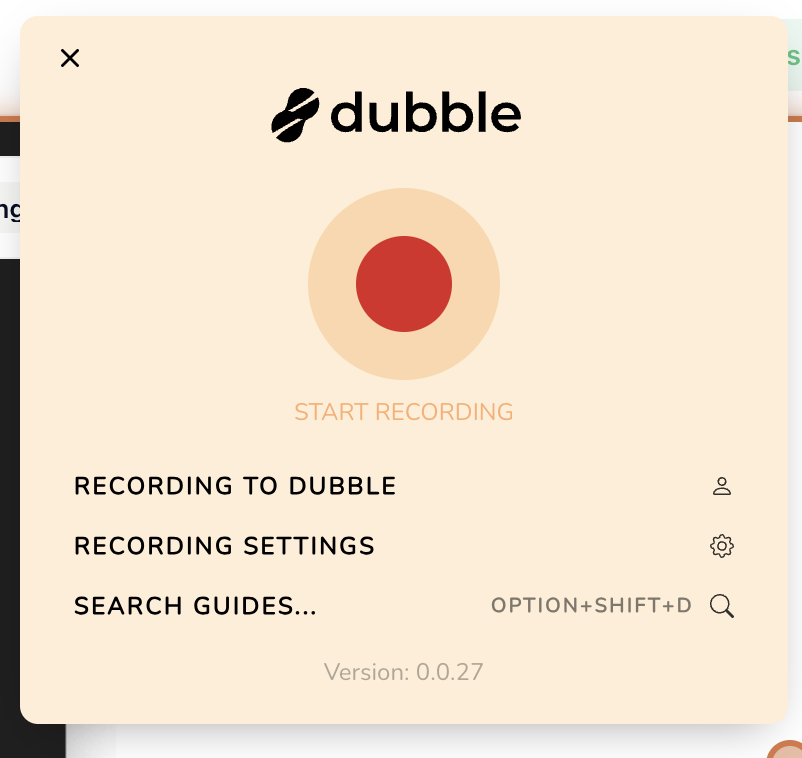
1. Click the Dubble icon and press START RECORDING to capture a new guide.
2. While recording, hover over the Dubble icon in the bottom right corner of your screen to expand the controls.
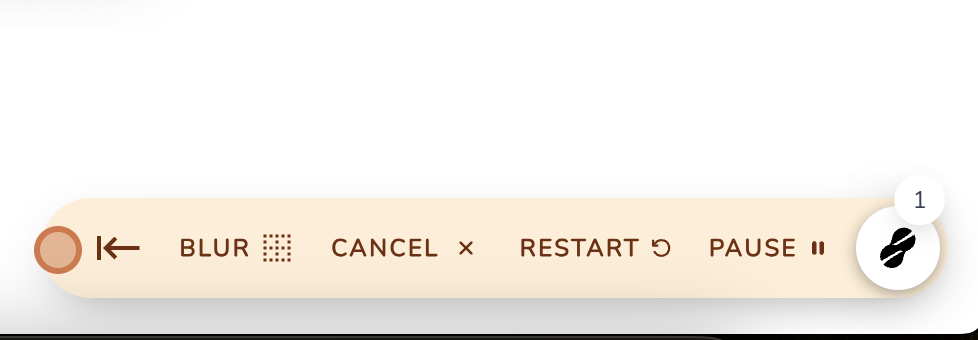
Move to left/right side: Moves the controls to the other side of your screen, so they don’t cover what you’re recording.
Blur: Hides sensitive information before it’s captured. Click BLUR, select what you want to blur, then click CONTINUE. See Using the Blur tool for step-by-step instructions.
Pause/Resume: Pauses recording so you can move around without capturing steps. Click again to resume.
Restart: Discards your current recording and starts a new guide.
Cancel: Stops recording.
Dubble icon: Turns into a green tick when you hover over it. Click it to finish recording and create your guide.

Recording Settings Overview
Adjust highlights, audio, and camera to fit how you work.
Recording your first guide
How to use the Dubble Chrome Extension to record a guide
Using the Blur tool
Learn how to blur sensitive content while recording guides.
Can I hide the onscreen controls?
Configure whether onscreen controls are displayed while recording guides.