Dubble gives you flexible control over how your recordings look and feel. You can adjust highlight options, camera placement, audio input, and onscreen controls to create guides that match your workflow. Most of these options are available in both our desktop app and Chrome extension. You can change these settings by clicking the Dubble icon for the app or Chrome extension and selecting “Recording Settings.”
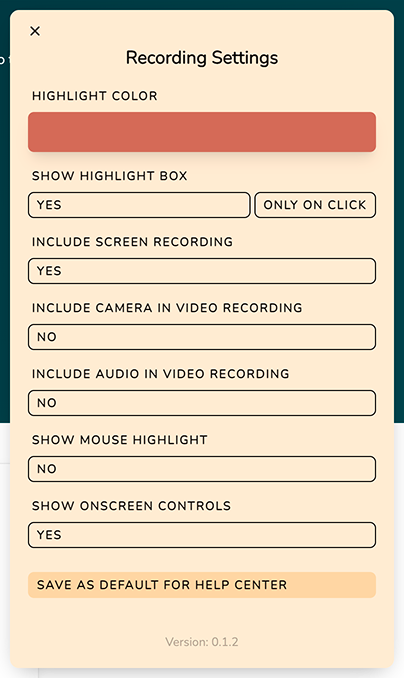
Choose the color for your cursor highlight to make it easier for viewers to follow along.
The color picker supports:
Sliders
HEX (e.g. #D87645)
RGBA (Red, Green, Blue, Alpha for transparency)
HSBA (Hue, Saturation, Brightness, Alpha)
You can use the sliders or enter exact values to set the color that best fits your style or brand.
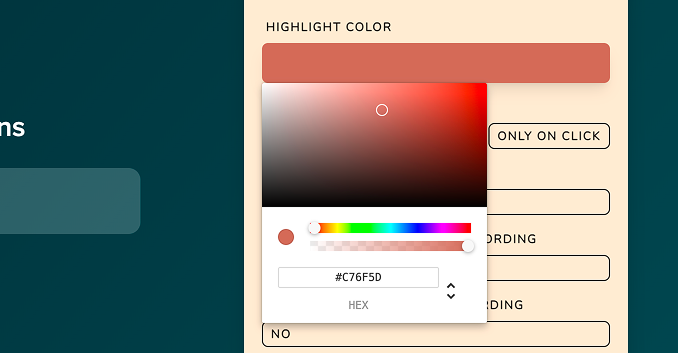
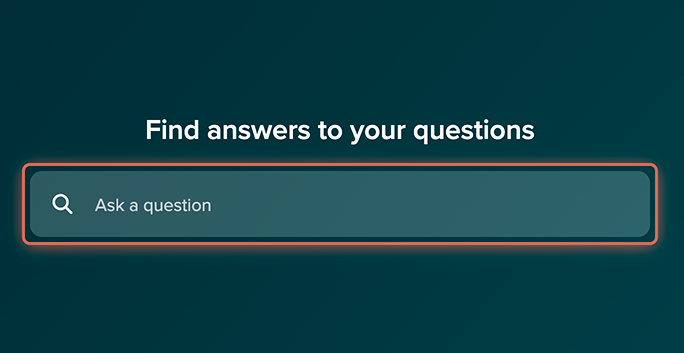
Decide when a highlight box appears around your clicks:
No: The highlight box won’t be displayed.
Only on Click: The highlight box appears briefly when you click.
Always Show: The highlight box is visible when hovering over elements as well as on clicks.
Toggle whether your screen is captured when recording a new guide:
Yes: Include a screen recording video in your guide.
No: Record the guide without video.

Add your camera feed to the screen recording for a more personal touch. This option is available when screen recording is turned on.
Yes / No: Choose whether to include your camera.
Placement and Shape: Pick from small, medium, or large views by hovering over the camera preview. You can also click and drag the camera window to move it around your screen.
Add narration or voiceover to your recording.
Yes / No: Choose whether to capture your microphone audio.
Make your cursor position more visible with a highlight.
Yes: Display a highlight around the cursor.
No: Cursor will not be highlighted. It won’t appear in screenshots, but the unhighlighted cursor will still be displayed in screen recording videos.
Enable floating recording controls so you can pause, stop, or adjust settings while recording.
Yes / No: Show or hide onscreen controls. When turned off, you can stop recording guides by clicking the Dubble icon in the toolbar (Chrome extension) or menu bar (Desktop app).
Can I hide the onscreen controls?
Configure whether onscreen controls are displayed while recording guides.
Selecting “Save as default for workspace” will save your changes as the default recording settings for the selected workspace. You can update this anytime from your Workspace Settings. This is available to workspace owners.