company logo

Help center

Go to Dubble
Powered by
All collectionsQuick TipsEditing GuidesUpdate a screenshot from a screen recording

Update a screenshot from a screen recording

Replace a screenshot with a different frame from your screen recording. Use the slider to rewind or fast forward to the moment you want.

info icon
This requires Screen Recording to be toggled on when the guide was recorded. This is available on Dubble Pro.

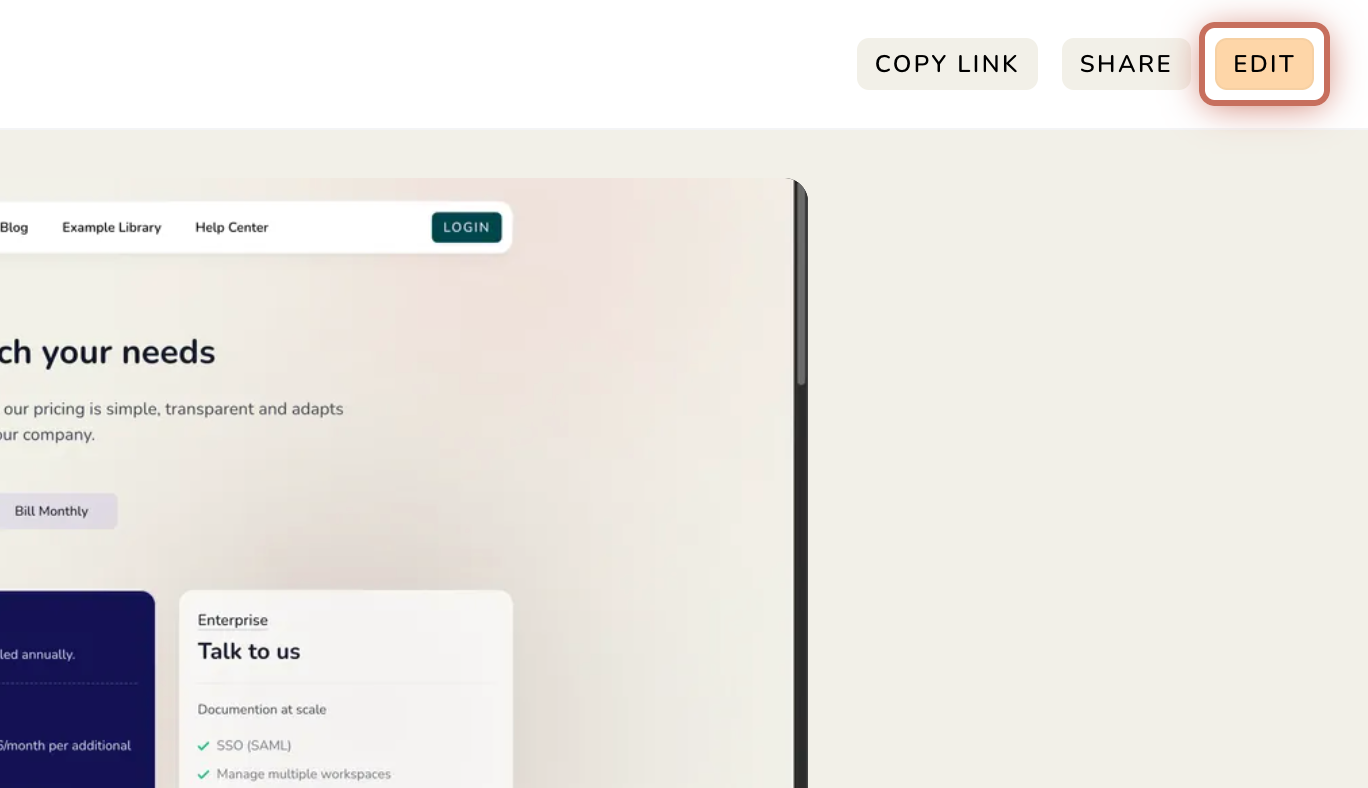
1. Open your guide and click Edit. Skip this if you're already in the editor.

2. Click the camera icon below the screenshot you want to update.

3. Drag the slider to scrub through the screen recording to choose a new screenshot.

4. Click SAVE.

Did this answer your question?
😞
😐
😁